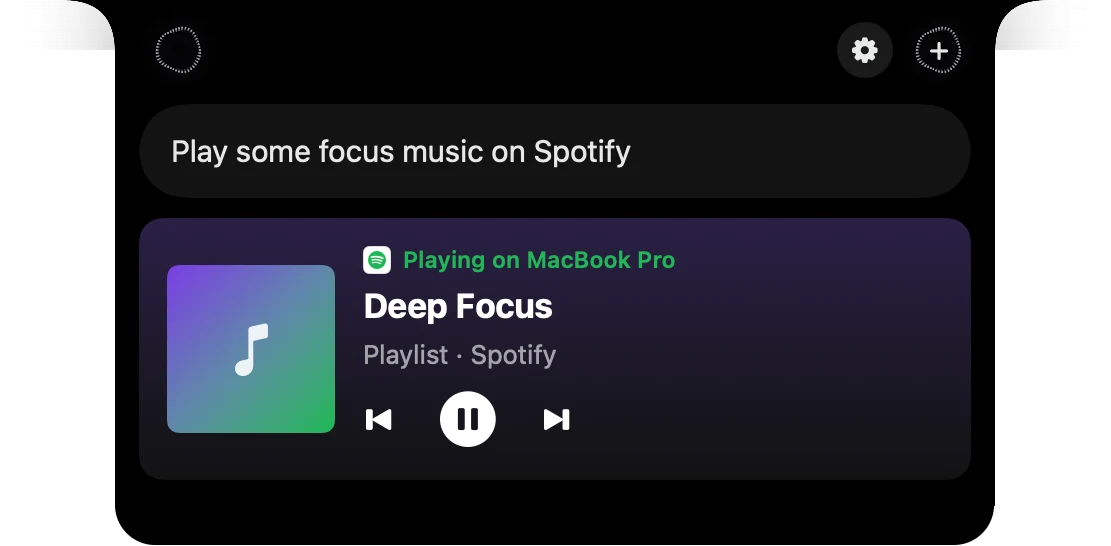
Type in the notch
When you'd rather not talk, press ⌘⇧Space and Speechy's notch opens at the top of your Mac's screen with the cursor in the ask box. Type your request and press Return to send it. Press ⌘⇧Space again to fold the notch away.
How to use Type in the notch
Press ⌘⇧Space
The notch opens with the cursor ready.
Type your request
The shortcut's keycaps fold away as you type.
Press Return
It sends, and the answer lands in the notch.
Press it again to fold
The notch tucks back under the camera.
 Google Tasks
What you do, what you get
Speechy's notch
You do
“Press ⌘⇧Space, type "What's in Downloads?" and press Return”
You get
Your Downloads folder as a Finder list, folders first, then newest.
Speechy's notch
You do
“Click the notch at the top of your screen”
You get
The notch opens with the keyboard, ready for you to type.
Speechy's notch
You do
“Hold Fn and talk while the ask box has the cursor”
You get
Your words go into the ask box, with ↩ to send.
Pick your own keys.
In Speechy, Settings, Shortcuts, Assistant. Click a shortcut, then press the keys you want.
- Type in the notchOpens the notch with the cursor in the ask box⌘⇧Space
- AssistantAsk about your apps by voice, in the notch⌥⇧Space
- New chatWhile the notch is open: start over⌘N
Questions
Yes. In Settings, Shortcuts, Assistant, click Type in the notch and press the keys you want. Clearing it turns the shortcut off.
Yes. A click on the notch opens it with the keyboard, so you can start typing right away.
Yes. Hold Fn while the ask box has the cursor and your words go in there, not into the app behind it.