Notch settings panel
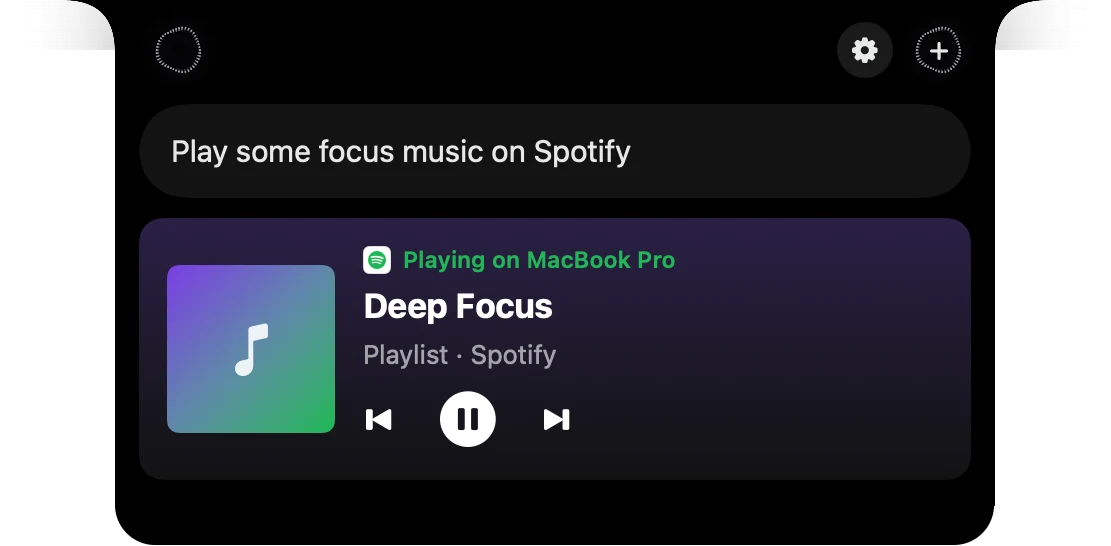
Notch settings puts the Speechy notch's own settings in one panel on your Mac: your Assistant and Type keys, connected apps, usage, when you stop talking and the voice. Open it with the gear at the top of the open notch, or from Settings on the right edge of your screen. Add finds an app from 1,000+ and signs you in without leaving your chat.
How to use Notch settings panel
Click the gear
At the top of the open notch. The panel rolls down beside it.
Check your keys
Change opens Settings, Shortcuts on that row.
Add an app
Search 1,000+ apps. You sign in from your browser.
Tune the notch and voice
Usage, when you stop talking, the voice and its volume.



What you do, what you get
Notch settings
You do
“Click Usage”
You get
The usage card in the notch: your plan or trial, requests this hour and words this week.
Notch settings
You do
“Click Change next to Type”
You get
Settings, Shortcuts opens with the Type in the notch row lit.
Notch settings
You do
“Click All settings”
You get
Speechy's Settings open on General.
Questions
Yes. The gear opens the same panel beside the notch, and the Settings tab on the right edge opens it there.
No. You sign in in your browser and the app turns on while you stay where you are.
Click the gear again, the panel's close button, or press Esc.
 Gmail
Gmail