


Dictate in Gmail on your Mac, and ask about your email
Hold Fn and speak into any Gmail message: Speechy types it, transcribed on your Mac. Connect Gmail and ask from anywhere: find an email, draft a reply, or send one after you check it.
Dictate into Gmail
Click into a message, hold Fn and speak. Your voice is transcribed on your Mac, and emails come out shaped like emails.
You say“hi Sam, let's meet at 8pm at the library, sorry make it 9pm, cheers Jay”
Speechy typesHi Sam,
Let's meet at 9 PM at the library.
Cheers,
Jay
Ask about your email
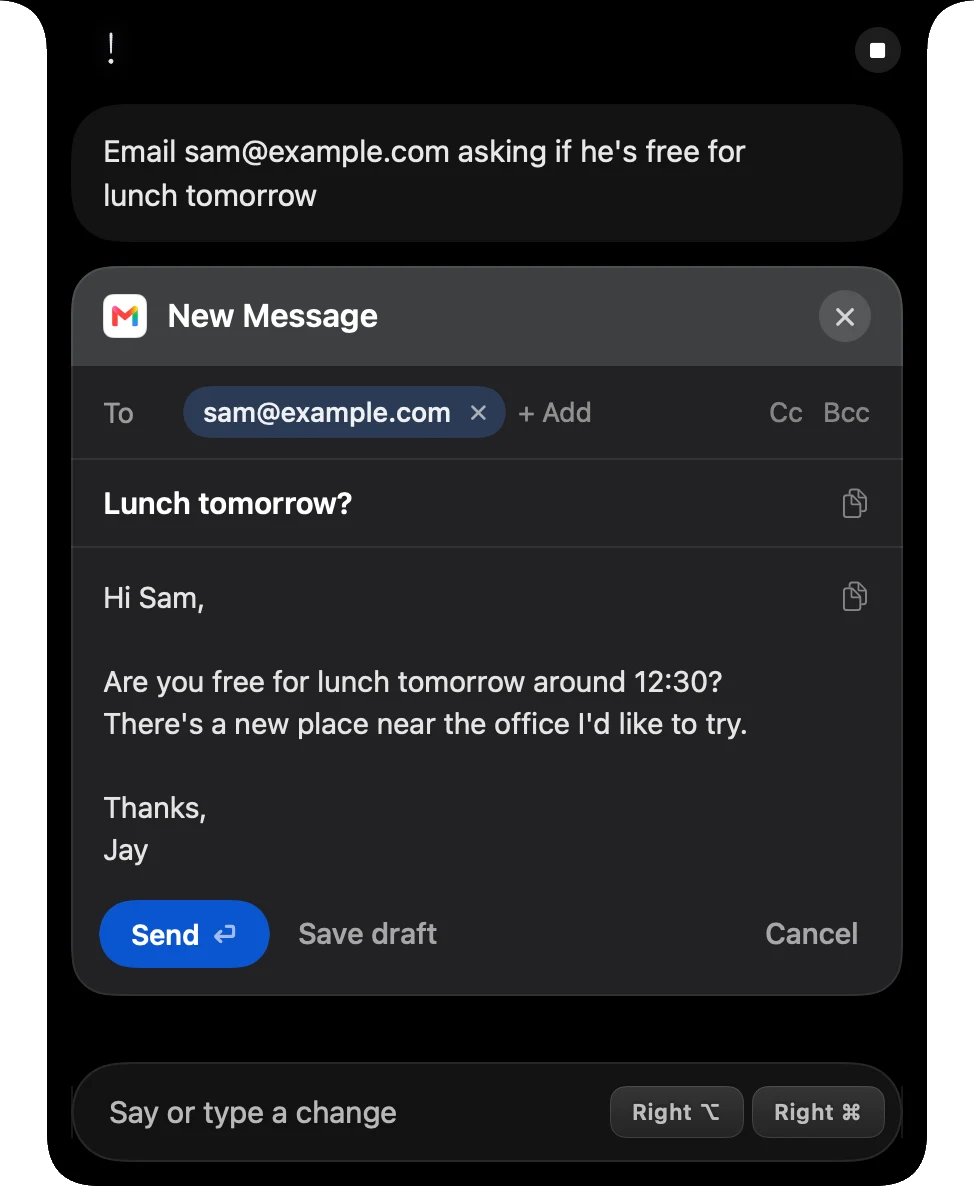
Press ⌥⇧Space from any app and ask. The answer shows in the notch with the emails it found. Sends show Gmail's own compose window first, with a few seconds to undo.
Try saying
- What did Kai send me this week?
- Draft a reply to the last email from Sarah
Asking sends your question as text to the AI that answers it. Your voice recording stays on your Mac.
What Speechy can do in Gmail
You choose for each one: Always, Ask first (it shows in the notch before it runs) or Never.
- Search and read mailFind emails and read threads to answer youAlways
- Write draftsDrafts land in Gmail. Nothing is sentAlways
- Send, reply and forwardShows the email in the notch firstAsk first
- Archive and labelShows what will change firstAsk first
- DeleteMoves mail to the trashNever
Set up Gmail in three steps
- Download SpeechyFor Macs with Apple silicon and macOS 14 or later.
- Turn on GmailIn Integrations, sign in with Google once, in your browser.
- AskPress ⌥⇧Space and try “What did Kai send me this week?”
More integrations
 Outlook
 Slack
Slack Notion
 Linear
 Google Docs
 Reminders
 iMessage
 Obsidian
 Claude Code
Say it. Speechy writes it.
Hold Fn, speak, and clean text lands in any app on your Mac.