How to Transcribe Voice Memos
This guide helps you quickly and easily convert your voice memos into text using simple tools and methods.
In this blog, you’ll learn:
- Why transcribing voice memos is helpful
- Different tools and methods for transcription
- Tips for better transcription results
Why Transcribe Voice Memos?
- Better Organization: Text is easier to search, categorize, and manage.
- Accessibility: Reading is often faster than listening, and text is accessible for those with hearing impairments.
- Shareability: Sharing notes, ideas, or meeting minutes is much simpler with text.
- Insights and Edits: Text allows you to highlight, edit, and annotate your recordings.
Transcribing Your Voice Memo
Here are a few ways to easily transcribe your voice memos:
1. Use TalkNotes.tech
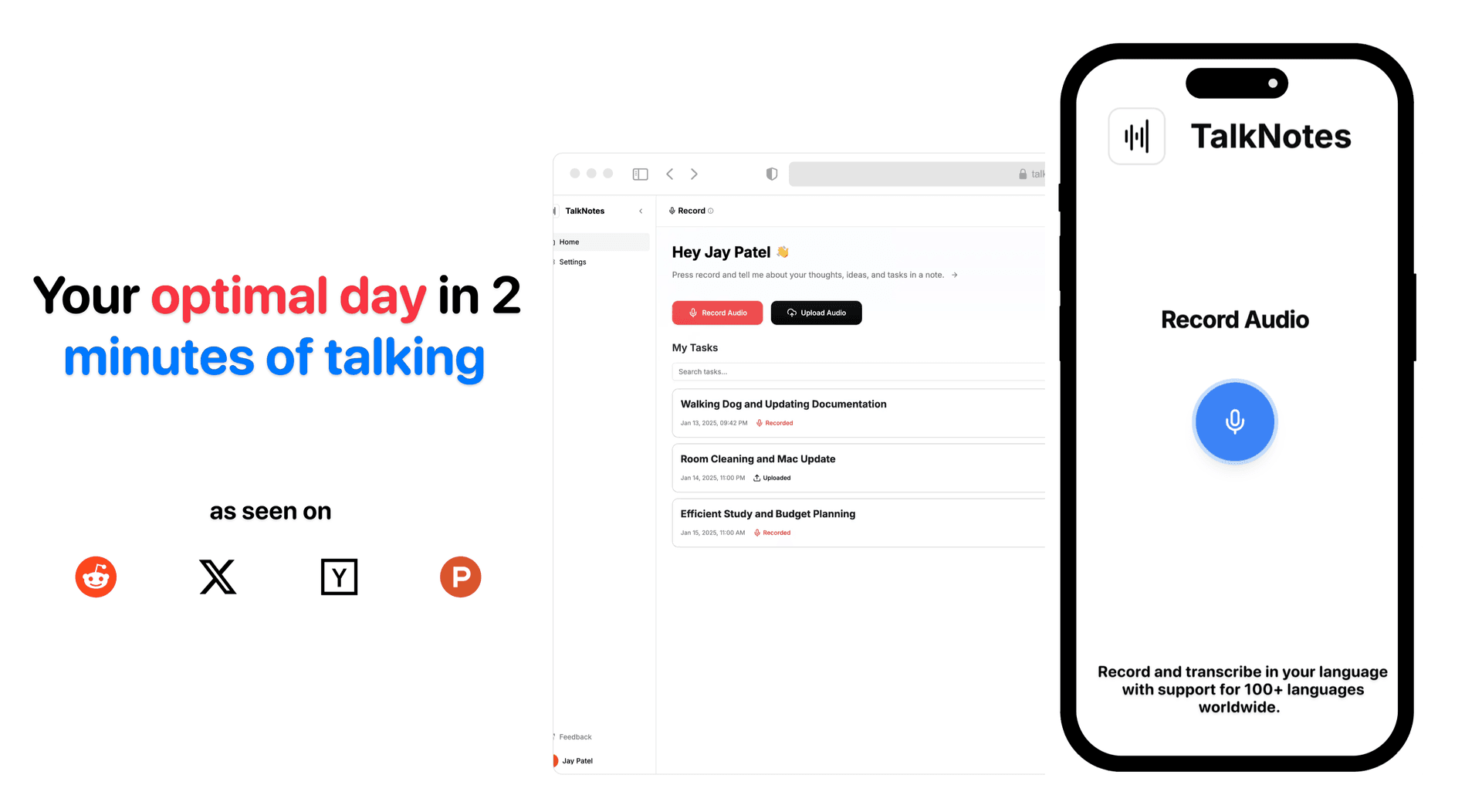
If you’re looking for an easy-to-use tool that does it all, try TalkNotes.tech. It’s a web app designed to transcribe your voice memos and organize them into actionable items like notes, todos, or meeting minutes. Perfect for anyone who values productivity and simplicity.
2. Google Docs Voice Typing
Another great option is Google Docs:
- Open Google Docs.
- Go to "Tools" and select "Voice Typing."
- Play your voice memo aloud, and Google Docs will transcribe it in real time.
3. AI-Based Tools
Advanced AI tools like OpenAI’s Whisper API can transcribe your voice memos with impressive accuracy. Many apps, including TalkNotes.tech, integrate this technology to provide seamless transcriptions and more.
Tips for Better Transcriptions
- Use Clear Audio: Record in a quiet environment with minimal background noise.
- Speak Clearly: Enunciate words to improve transcription accuracy.
- Edit the Transcript: Review the text for errors or formatting needs after transcription.
Conclusion
Transcribing voice memos doesn’t have to be complicated. Whether you prefer tools like TalkNotes.tech, Google Docs, or your phone’s built-in features, there’s a solution for everyone.
Turn your voice into organized notes, tasks, and flashcards instantly with TalkNotes.tech.